
Google Classroom is an online learning management platform developed by Google to assist teachers and students with digital educational activities. It acts as a central point at which teachers can share learning material, set and mark assignments, post and access announcements, and give feedback. Students can use it to view classwork, upload homework, find out due dates, and contact teachers. Google Classroom works in tandem with other Google services, including Google Drive, Google Docs, Google Slides, Google Forms, and Google Meet, to help to organize and manage online and in-school educational activities.
What Is Google Classroom?
Google Classroom is a digital platform that helps to facilitate the creation and management of classes by educators and provides students with a convenient source of learning material and academic activities. Teachers can use it to post assignments, share documents, set deadlines, mark submissions, and give feedback. Students can view their assignments, submit files, track their progress, and receive notifications on class activities. Google Classroom can be used in combination with Google Workspace tools, enabling users to work with documents, spreadsheets, presentations, and other education-related resources. Schools can use it as a part of Google Workspace for Education, whereas eligible individuals can also use Classroom with their personal Google accounts, subject to age and availability requirements.
Key Features of Google Classroom
Class Creation and Management
Google Classroom enables teachers to create virtual classrooms for different subjects, courses, and student groups. Teachers can organize their classes by sharing material, publishing announcements, and setting tasks.
Students can use a provided invitation or code to join a class if the teacher has enabled this option. The option helps to help to organize teaching activities and avoid relying on physical resources and methods of communication.
Assignment Creation and Submission
Teachers can use Google Classroom to create assignments, provide instructions, attach learning resources, and set submission deadlines. Students can complete their work and submit it digitally. Teachers can use the submissions, assess work, and return marked assignments. The options help to minimize the requirement for paperwork and facilitate the management of assignments.
Grading and Feedback
Google Classroom has features that enable teachers to grade submitted work and provide feedback. Teachers can add comments to assignments, return submissions for correction, and organize submissions by their status.
Depending on the available options and the edition of education, teachers can also use grading rubrics and comment banks to standardize the marking process.
Google Drive Integration
Google Classroom has integration with Google Drive to help to organize teaching resources. Teachers can share documents, presentations, spreadsheets, PDFs, and other educational files. Students can access the documents while completing their assignments.
Google Docs, Sheets, and Slides Integration
Google Classroom has integration with Google Docs, Sheets, and Slides, enabling students to complete different academic activities. Students can write essays using Google Docs, analyze data with Google Sheets, and prepare presentations with Google Slides. The features also facilitate the collaboration of students, making it easier to complete group assignments.
Announcements and Class Communication
Teachers can use announcements to share information with their students. Announcements can contain examination schedules, assignment instructions, study materials, reminders, and other course-related resources. This option helps to ensure student engagement without relying on physical notices.
Calendar and Deadline Management
Google Classroom helps students to manage their assignments and deadlines. Classwork can be synchronized with calendar tools to help to manage the dates. This option is helpful in managing the completion of multiple subjects, examinations, projects, and other homework activities.
Online Quizzes and Assessments
Teachers can use Google Forms and available features in Classroom to create and score quizzes. The features help to identify areas in which students need additional support. The available assessment options depend on the tools and edition of education.
Originality Reports
Google Classroom has originality-report features in supported education environments. The tools can help educators to detect text similarities between submissions and existing sources. Additionally, it can enable students to learn about citing practices and academic integrity. Availability and usage limits depend on the Google Workspace for Education edition. Similarity reports should be read carefully, as a matching passage does not necessarily indicate plagiarism.
Mobile Access
Google Classroom has mobile applications for supported Android and iOS devices. Students can use the mobile service to access class announcements, view assignments, access learning materials, and submit their work. Teachers can use the mobile service to manage classroom activities and provide feedback while being away from a computer. The mobile service facilitates easier access to educational activities from different locations.
AI-Powered Teaching Tools
Google has implemented AI-powered features in its range of education tools, including features that help to prepare instructional resources and support personalized learning. Depending on the edition and available features, educators can use AI assistance for lesson planning, learning resources, and other teaching activities. Some features require a subscription and add-ons, so schools should look into the availability of features.
Google Classroom Login
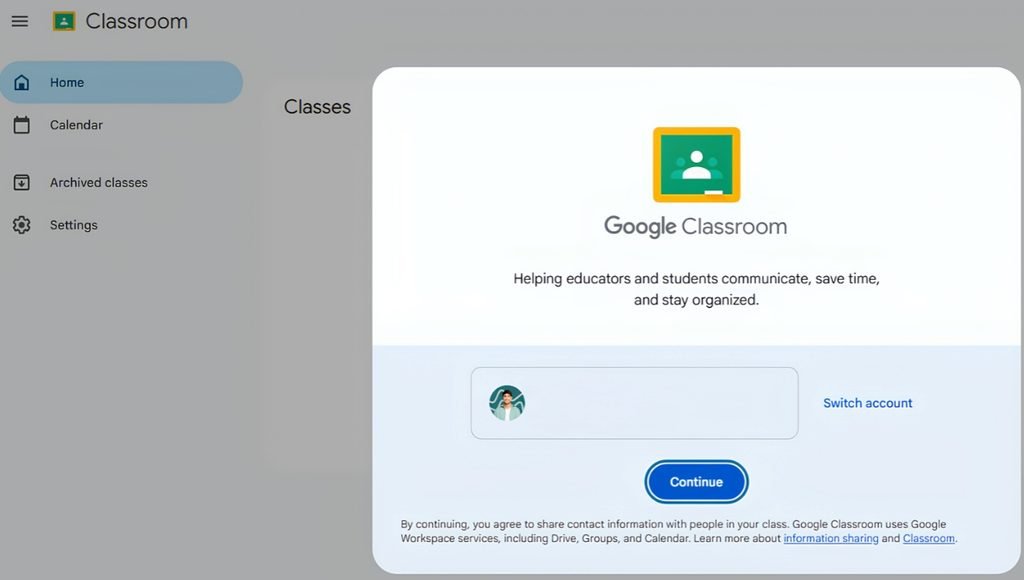
Here’s a step-by-step procedure to log in to Google Classroom.
- Step 1: Sign In. Open Google Classroom and sign in with the appropriate Google account. If your school or college provides an educational account, use this account to access the appropriate classes for your institution.
- Step 2: Join or Create a Class. Students can join a class using an invitation or code provided by their teacher.
- Teachers can create a class, provide the relevant information, and invite students if the account supports classroom creation.
- Step 3: Explore the Class Page. Explore the page to view the available announcements, assignments, learning materials, and other course-related information. Review the class regularly to ensure you do not miss any important updates.
- Step 4: Open Classwork. Open the classwork area to view assignments, questions, quizzes, and other learning materials provided by your teacher. Review the instructions before completing your tasks.
- Step 5: Complete Your Assignment. Open the assignment and review the requirements. Depending on the task, you may need to complete a document, worksheet, presentation, and other activities. Prepare your work using the available tools.
- Step 6: Submit Your Work. Attach or create a document and submit your assignment through Classroom. Before submitting, ensure you have uploaded the correct document and completed the required sections.
- Step 7: Check Feedback and Grades. Review the grade and feedback from your teacher after they have marked your assignment. Use the comments to identify mistakes and ensure improvements to submissions.
- Step 8: Manage Deadlines. Review upcoming assignments and due dates regularly. A simple study planner can be helpful in prioritizing tasks and avoiding late submissions across multiple subjects.
Who Should Use Google Classroom?
Students
Students can use Google Classroom to access assignments, download learning materials, submit homework, find out due dates, and receive teacher feedback. It helps students to organize their academic work in a central location and prevents multiple platforms for coursework.
Teachers
Teachers can use Google Classroom to share learning materials, set assignments, assess and provide feedback on student work, and communicate with their classes. It can also help to organize coursework, track submissions, and provide feedback.
Schools and Colleges
Educational institutions can use Google Classroom to facilitate online education and manage academic activities. It can be used alongside classroom teaching or as a part of a larger digital education system.
Online Tutors
Tutors can use Classroom to distribute study materials, make assignments, and provide feedback to students. It can be helpful in managing multiple learners and organizing lessons by subject or course.
Parents and Guardians
In supported school environments, eligible parents and guardians may receive summaries of student activity and upcoming work. This provides information on the assignment schedules and encourages students to stay organized. Availability depends on the institution and account settings.
Educational Content Creators
Educators who create learning resources can use Google Workspace tools to prepare documents, presentations, and worksheets, and distribute them through Classroom. This can be helpful in organizing the sharing of educational resources with students.
Applications of Google Classroom
Online Education
Google Classroom facilitates the distribution of teaching resources, the management of assignments, and communication between teachers and students online. It helps in supporting distance learning when students and teachers are unable to meet.
Homework Management
Teachers can assign and mark homework digitally. Students can find out their due dates and whether their work has been marked or returned.
Examination Preparation
Teachers can distribute revision notes, practice questions, worksheets, and quizzes. Students can use the materials to prepare for examinations and review important topics.
Group Projects
Students can collaborate on shared documents, spreadsheets, and presentations. This helps with the completion of group assignments and enables multiple students to contribute to the same tasks.
Assignment Evaluation
Teachers can review submitted work, add comments, and record grades with available features. It helps the management of student submissions and identifying if assignments are missing.
Digital Resource Sharing
Teachers can share reading materials, presentations, documents, and other resources. Students can access the materials without relying on printed material.
Blended Learning
Schools can use a combination of classroom teaching and digital activities using Google Classroom. Teachers can use it to share materials, assign activities before lessons, and provide feedback after classroom sessions.
Academic Organization
Students can use Classroom to track assignments, due dates, announcements, and feedback. It helps to manage their time and avoid missing out on academic tasks.
Pros and Cons of Google Classroom
| Pros | Cons |
| Easy to use for basic classroom activities | Some advanced features require paid editions |
| Helps organize assignments and learning materials | Requires internet access for most online activities |
| Integrates with Google Docs, Sheets, Slides, and Drive | Advanced workflows may require familiarity with other Google tools |
| Supports online assignment submission | Teachers need to organize classes and materials properly |
| Allows teachers to provide digital feedback | Not every assessment can be fully automated |
| Supports remote and blended learning | Features may differ by account and institution |
| Available through supported mobile applications | The experience may be limited on smaller screens |
| Helps students track classwork and deadlines | It may not replace every feature of a specialized learning management system |
Is Google Classroom Safe to Use?
Google Classroom is a collaborative educational application and integral element of Google Workspace. Google considers Classroom free of advertisements, and the company confirms that users’ materials and data in its fundamental Workspace services are not utilized for this purpose. Nevertheless, institutions, teachers, students, and parents must implement recommended safety measures and ensure that only authorized users access the system.
The former should limit the range of action of each account, verify the settings’ privacy level, and ensure compliance with relevant institutional policies. In turn, students must adhere to the rules of acceptable use, refrain from sharing private information in posts or assignments, and apply appropriate precautions when interacting online.
Conclusion
Google Classroom is a collaborative educational platform that provides teachers and students with features to organize and manage academic activities. Its integration with Google Drive and other Google Workspace tools, such as Docs, Sheets, Slides, and more, provides institutions with the capacity to store course material, assignments, and feedback directly in the app. In essence, Classroom is a multifunctional tool that helps teachers with curriculum planning, grading, communication with students, and distributing assignments while also providing learners with resources, grading areas, and interactive modules.
While the fundamental features of Classroom are available via the no-cost Education Fundamentals edition, other functions are only accessible via paid institutional editions.
FAQs
A1. It is used to manage classes, share educational material, assign, collect, and grade homework, communicate with students, and other educational activities.
A2. The free version of Google Classroom is available in the Education Fundamentals program. The other editions might be available for an additional cost.
A3. Students can use Google Classroom on their mobile devices. The app is available for Android and iOS.
A4. Yes, teachers can grade assignments in Google Classroom.
A5. Yes, Google Classroom is suitable for online learning. Teachers can share educational material, grade assignments, communicate with students, and manage classes.
Also Read: WhiteHat Jr: Coding Classes for Kids, Courses, Benefits, Trial Classes, Pricing and More


[…] Also Read: Google Classroom: Complete Guide, Login, Features, Pricing, Review and Uses […]